I was working from a coworking space downtown a few months back, using WhatsApp Web on their shared desktop computer to confirm a payment with a client while my laptop charged. I finished up, closed the browser tab, and left.
Three days later I went back to that same computer for something unrelated and opened the browser out of habit. My entire WhatsApp Web session was still logged in. Every message, every payment confirmation screenshot I’d sent that client, right there on a shared public computer, for anyone who used it after me to see.
Nothing bad happened, thankfully, but that moment scared me enough to actually go through every security setting WhatsApp offers and rebuild my habits around how I handle anything money-related in the app. This isn’t about scam messages or fake sellers, which I’ve covered elsewhere. This is specifically about locking down your own account and card habits so a mistake like mine doesn’t turn into an actual problem.
The Session I Left Open (And Why It Mattered More Than I Thought)
WhatsApp Web and WhatsApp Desktop don’t automatically log out after a period of inactivity the way a lot of banking sites do. Once you scan that QR code and link a device, it stays linked until you manually remove it, sometimes for weeks.
That means any payment link I’d sent, any confirmation screenshot, any conversation with a seller about an order was sitting there, fully accessible, on a computer I didn’t own or control. If someone with bad intentions had sat down before me, they could have seen enough personal and financial context to attempt identity theft or social engineering against me directly.
Step 1: Check and Manage Your Linked Devices
The first thing I did after that scare was go through my linked devices list, and I’d recommend anyone reading this do the same right now.
- Open WhatsApp on your phone
- Go to Settings, then Linked Devices
- Review every device listed — you’ll likely be surprised how many old sessions are still sitting there
- Tap any device you don’t recognize or no longer use and select Log Out
- Make it a habit to log out of WhatsApp Web or Desktop manually every time you finish using it on a shared or public computer
I found two old sessions from computers I hadn’t used in over a year. Neither was malicious, as far as I know, but they absolutely shouldn’t have still been active.
Step 2: Turn On Two-Step Verification
This is separate from your phone’s lock screen and separate from WhatsApp’s normal verification code. Two-step verification adds a PIN that’s required if someone ever tries to register your phone number on a new device, which is exactly the scenario that plays out in SIM-swap style account takeovers.
How to turn it on:
- Go to Settings, then Account
- Tap Two-Step Verification
- Tap Enable
- Set a six-digit PIN you haven’t used elsewhere
- Add an email address as a backup, in case you ever need to reset the PIN
I hadn’t set this up before, mostly out of laziness, and it took less than two minutes once I actually did it.
Step 3: Use Chat Lock for Anything Money-Related
WhatsApp has a feature called Chat Lock that hides a specific conversation behind an extra layer of authentication, like your phone’s fingerprint or face unlock, separate from just unlocking your phone itself.
I now use this for every ongoing conversation involving payments, whether that’s a client I invoice regularly or a seller I’m mid-transaction with.
To turn it on for a specific chat:
- Open the chat
- Tap the contact or group name at the top
- Scroll down and tap Chat Lock
- Enable it and confirm with your device’s biometric method
Even if someone picks up my unlocked phone, they can’t casually scroll into a payment-related conversation without clearing that second lock.
Step 4: Turn Off Message Preview on Your Lock Screen
This one genuinely surprised me. My phone was set to show full message previews on the lock screen, which meant if a seller sent something like a payment confirmation or invoice amount, that text was visible without even unlocking the phone.
I turned this off entirely for WhatsApp specifically, so notifications just say a new message arrived without showing the actual content.
On iPhone: Settings, then Notifications, then WhatsApp, then set Show Previews to Never or When Unlocked On Android: Settings, then Apps, then WhatsApp, then Notifications, and adjust the preview settings from there
Step 5: Rethink How You Actually Enter Card Details
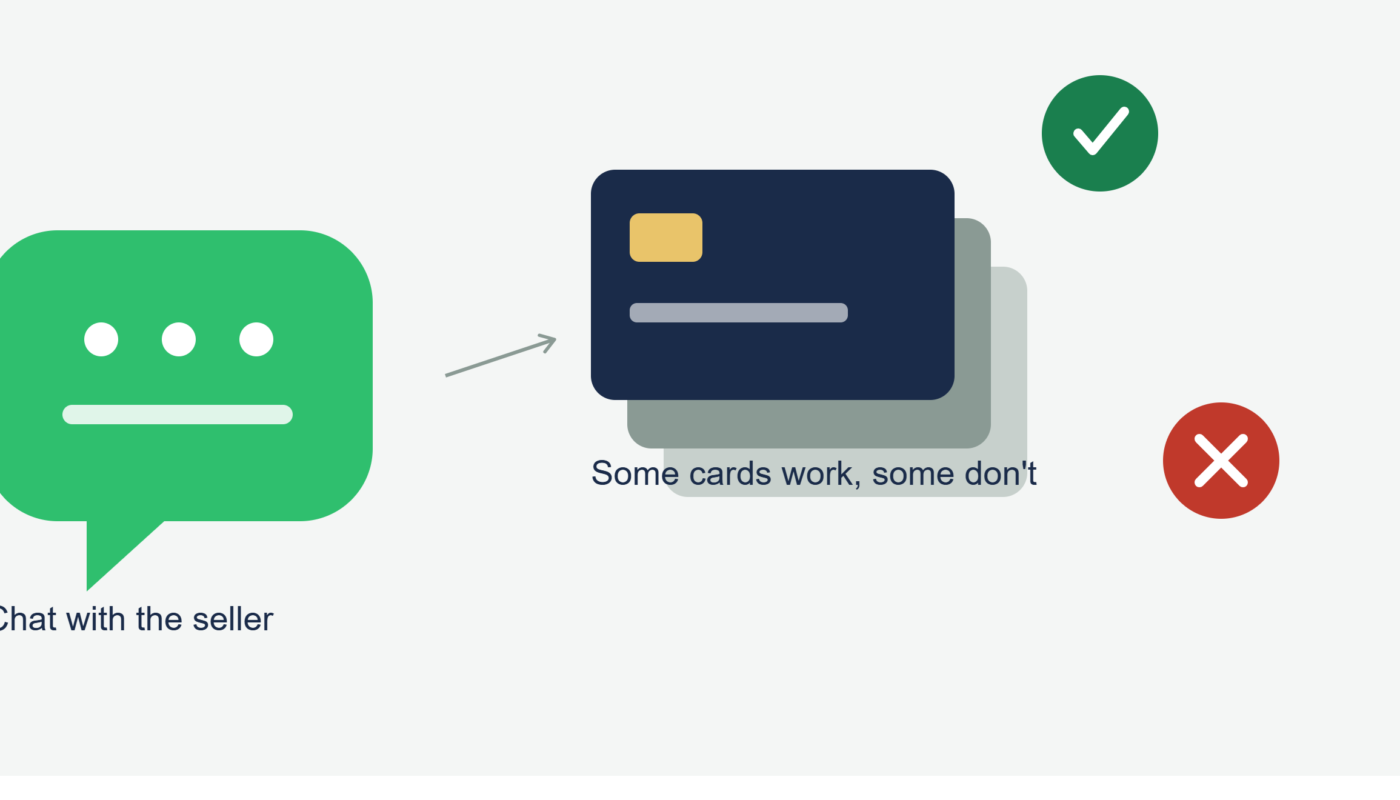
This is where the credit card side comes in specifically. When I’m paying a seller through a checkout link sent in WhatsApp, I’ve started using a virtual card number instead of my real card whenever the option is available.
My bank, Capital One, has a feature called Eno that generates a virtual card number tied to my real account. Some people use Privacy.com for the same purpose. The idea is simple: if that specific virtual number ever gets compromised, I can shut it down instantly without affecting my actual card or having to request a full replacement.
I started doing this after the coworking space incident, mainly because it occurred to me that anyone who’d seen those chat screenshots would have seen partial card details too, since some checkout confirmations show the last four digits.
Step 6: Lock Your Card Between Uses
Most major card issuers now let you freeze and unfreeze your card instantly through their app. I’ve gotten into the habit of locking my card immediately after completing a WhatsApp-linked purchase, then unlocking it only right before I need to use it again.
It takes about ten seconds each time, and it means even if card details somehow leaked from an old screenshot or session, there’s a much smaller window where the card is actually usable.
A Mistake I Made That I’m Not Proud Of
For longer than I’d like to admit, I had message previews turned on, no two-step verification, and I’d never once checked my linked devices list before that coworking space scare. I treated WhatsApp security the same way I treated a normal group chat about weekend plans, not realizing how much financial context had accumulated in individual conversations over time.
The wake-up call wasn’t a hack or a scam. It was just realizing how casually exposed all of that information had been sitting the whole time.
A Real Example Where This Setup Actually Helped
A friend of mine had her phone stolen out of her bag at a coffee shop. Because she had two-step verification enabled, whoever took the phone couldn’t register her number on a new device to hijack her WhatsApp account. She was able to get a new phone, reinstall WhatsApp, and restore her account without her old conversations or payment history falling into the thief’s hands.
Without that PIN in place, her account could have been taken over entirely, along with every payment-related conversation and screenshot inside it.
Common Mistakes to Avoid
- Leaving WhatsApp Web or Desktop logged in on a shared or public computer
- Skipping two-step verification because it feels like an unnecessary extra step
- Leaving message previews visible on your lock screen for payment-related chats
- Using your actual primary card number for every chat-based checkout instead of a virtual card option
- Never checking your linked devices list, even once
Final Thoughts
None of these steps take more than a few minutes total, and none of them require you to stop using WhatsApp for payment-adjacent conversations the way you already do. They just close the small, easy-to-miss gaps that turn a normal chat into a genuine risk if your phone, session, or card details ever end up somewhere they shouldn’t.
I still use that coworking space sometimes, and I still use WhatsApp Web when it’s convenient. I just make absolutely sure to log out now, every single time, without exception.