A few months back I helped a friend set up automated order confirmations for her online candle shop, using a WhatsApp chatbot tool so customers could get shipping updates without her manually typing out every message. Partway through setup, the platform told her she needed to “add a payment method to your WhatsApp Business Account” before it would send a single message.
She called me confused, assuming this was somehow connected to accepting customer payments. It wasn’t. And honestly, I didn’t fully understand the difference myself until I dug into it that same afternoon.
Turns out “linking a credit card to WhatsApp” actually means two completely different things depending on what you’re trying to do, and almost nobody explains the difference clearly. So let’s break it down properly, because I went through the actual setup process myself to make sure I wasn’t just repeating secondhand info.
The Confusion Starts With What People Assume “Linking a Card” Means
When most regular WhatsApp users hear “link your credit card to WhatsApp,” they picture something like adding a card to Apple Pay or Venmo — a personal wallet feature where you tap a few buttons and your card is now attached to your account for sending or receiving money.
That feature does not exist for personal WhatsApp accounts in the U.S. There’s no settings menu where an individual user adds a Visa or Mastercard for everyday use. I’ve looked, and so has practically everyone I know who’s asked me this same question.
What actually does exist — and what my friend ran into — is something completely different: billing for the WhatsApp Business Platform, which is Meta’s paid API system that businesses use to send automated messages at scale.
The Real Feature: Linking a Card for WhatsApp Business API Billing
If a business wants to send things like order confirmations, shipping updates, appointment reminders, or marketing messages through WhatsApp outside of a live customer conversation, Meta charges a small per-message fee for those, based on the message category and the recipient’s country.
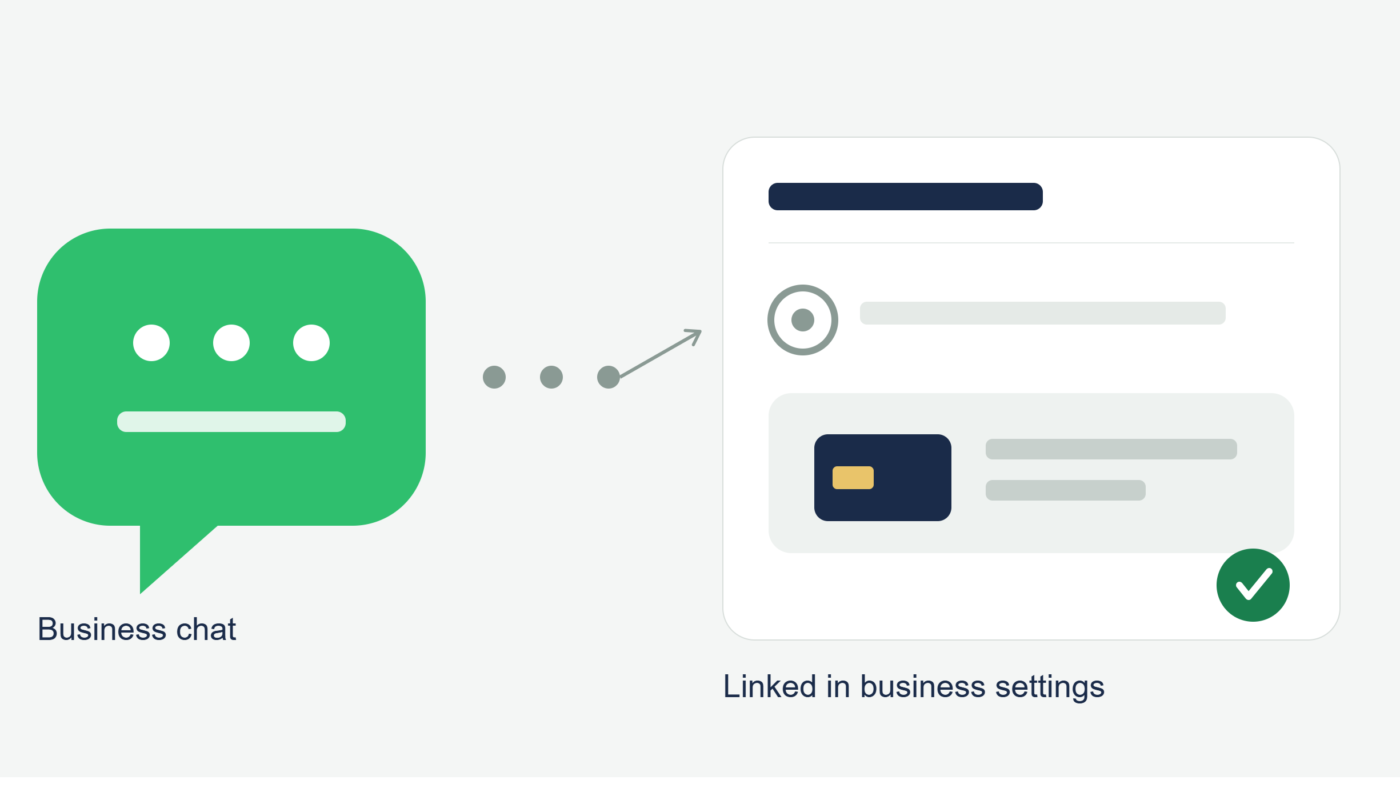
To cover those charges, the business needs to link a real credit or debit card to their Meta Business Manager account. This is the actual, legitimate “linking a card to WhatsApp” process, and here’s how it works based on setting it up myself.
Step-by-Step: Adding a Payment Method for WhatsApp Business
- Go to Meta Business Manager (business.facebook.com) and log into the account tied to your business
- Click the settings gear icon in the bottom-left corner to open Business Settings
- Find the Payments section and click Payment Methods
- Click Add Payment Method and choose credit or debit card
- Enter the card number, expiration date, CVV, and billing details, then save
- Go to the WhatsApp Business Accounts tab and select the specific WhatsApp account you want the card linked to
- Confirm and link the card to that account
Once that’s done, Meta uses the card to bill for template messages going forward. Regular replies to customers within a 24-hour window stay free, so this only really matters once a business starts sending outbound updates or campaigns.
The Mistake My Friend Almost Made
When my friend tried adding her card the first time, she used a prepaid Visa gift card she had lying around, since she didn’t want to put her main business debit card on file for a system she didn’t fully trust yet.
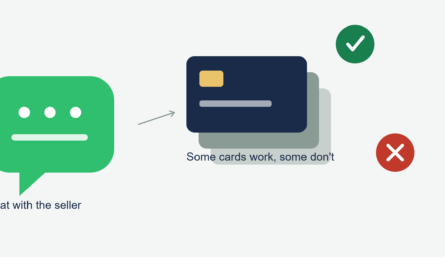
It got rejected immediately, with an error saying the card type wasn’t supported. Turns out Meta doesn’t accept prepaid cards, virtual cards, or gift cards for this — only a standard credit or debit card issued directly by a bank. She ended up using her real business debit card instead, and it went through fine.
She also got a small, temporary authorization charge on her statement right after adding the card — a few cents that showed up and then disappeared within a day. That’s completely normal; it’s just Meta verifying the card is real and active, not an actual charge.
Why This Is Different From Accepting Customer Payments
Here’s the part that trips people up the most, including me at first. Linking a card for WhatsApp Business API billing has nothing to do with how customers pay the business.
When my friend’s candle shop customers actually pay for an order, that happens through a completely separate system — in her case, a Shopify checkout link she sends manually or through the automation, which routes through her own Shopify payment processor. That card information never touches the Meta billing card at all. They’re two entirely unrelated systems that happen to both involve “a card” and “WhatsApp” in the same sentence, which is exactly why the confusion happens so often.
A Second Real Example: Why a Business Might Need This At All
Another small business owner I know runs a local dog grooming service and uses a WhatsApp automation tool to send appointment reminders the day before each booking. Those reminder messages count as “utility” messages under Meta’s system, and once she exceeded her free monthly conversation allowance, the tool started drawing from her linked card automatically to keep the reminders going out.
She told me the charges are small, usually just a few dollars a month total, but without the card linked, her reminder messages would have just stopped sending entirely once she hit the free tier limit. That’s the practical reason this system exists in the first place.
Step-by-Step: Figuring Out Which One You Actually Need
Before doing anything, it helps to figure out which situation actually applies to you:
- Are you an individual just wanting to pay a friend or a small seller? You don’t need to link anything. Use a payment app link (Venmo, Zelle, Cash App) or a checkout link the seller sends you, and pay with your card there directly.
- Are you a business owner using WhatsApp to message customers automatically at scale? You’ll likely need to add a card to Meta Business Manager to cover template message billing, following the steps above.
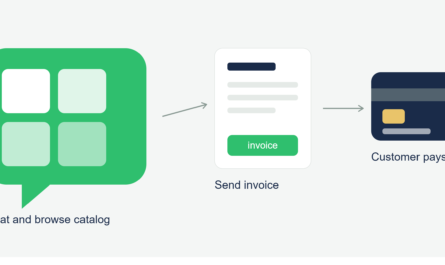
- Are you a business owner who wants to accept customer payments through WhatsApp chats? That’s handled through a separate payment processor like Stripe, Square, or PayPal, connected through your own invoicing or checkout tool — not through the Meta billing card at all.
Common Mistakes to Avoid
- Assuming there’s a personal “add my card” feature inside the regular WhatsApp app for sending or receiving payments — there isn’t, for U.S. accounts
- Trying to use a prepaid or virtual card for Meta Business billing, which typically gets rejected
- Confusing the Meta billing card (for messaging fees) with the payment processor used to actually charge customers
- Forgetting that the small temporary authorization charge when adding a card is normal, not an error
- Not double-checking which Meta Business Account and WhatsApp Business Account the card is actually being linked to, especially if you manage more than one
Final Thoughts
My friend’s candle shop is running smoothly now, her reminders and shipping updates go out automatically, and her actual customer payments still flow through Shopify like normal, completely separate from the card she linked in Meta Business Manager.
If you came here wondering whether you can just “link your credit card to WhatsApp” the way you would with Apple Pay or Venmo, the honest answer is that specific feature doesn’t exist for personal U.S. accounts. But if you’re running a business and setting up automated messaging, linking a card really is a real, necessary step — just one that has nothing to do with how your customers actually pay you.